

History
Storyblok’s page history feature lets you track and manage changes made to a story over time, compare different versions, and restore any previous version as needed.
To view a story's history, select History in the upper-right corner of the editor.
Versions
Section titled “Versions”In Storyblok, a version refers to a saved state of a story at a specific time. When a story is saved or a workflow stage changes, Storyblok creates a new version.
This allows users to track changes, view previous iterations, and restore earlier versions if needed.
The Versions list appears in the right panel and displays all saved versions of the story in chronological order, along with timestamps and the names of the authors who made the changes.
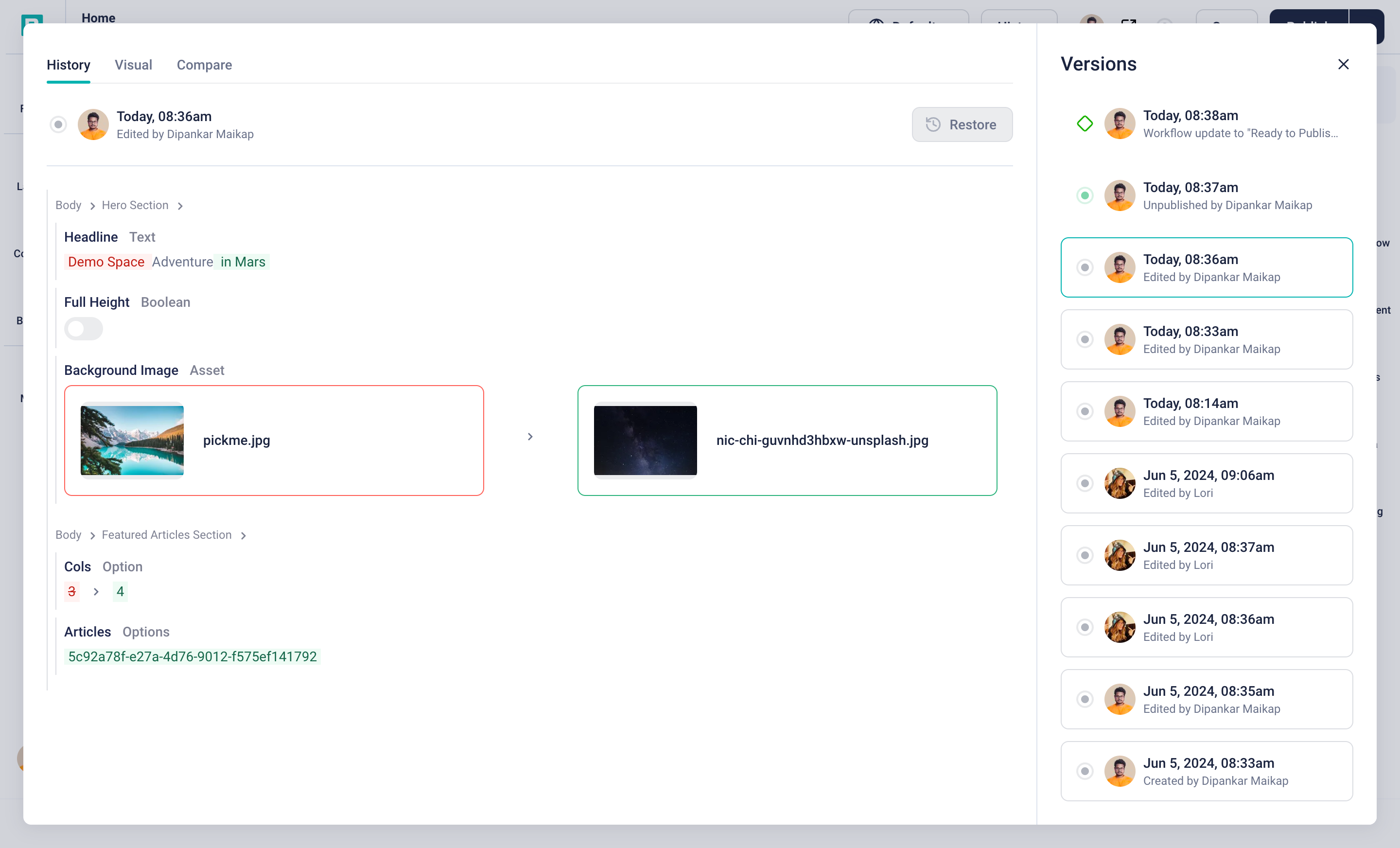
Story history
The version list groups changes as cards. When a story is unpublished, a corresponding card appears in the timeline. When a story is unpublished immediately after being published, the grouped published card is removed, restoring all previously saved versions as individual entries.
Versions saved before publishing are grouped, making it easier to identify and manage changes before publication.
The detailed changelog displays a breakdown of the modifications made in each version. The colors indicate the type of change:
- Green for newly added content
- Yellow for changed content
- Red for deleted content.
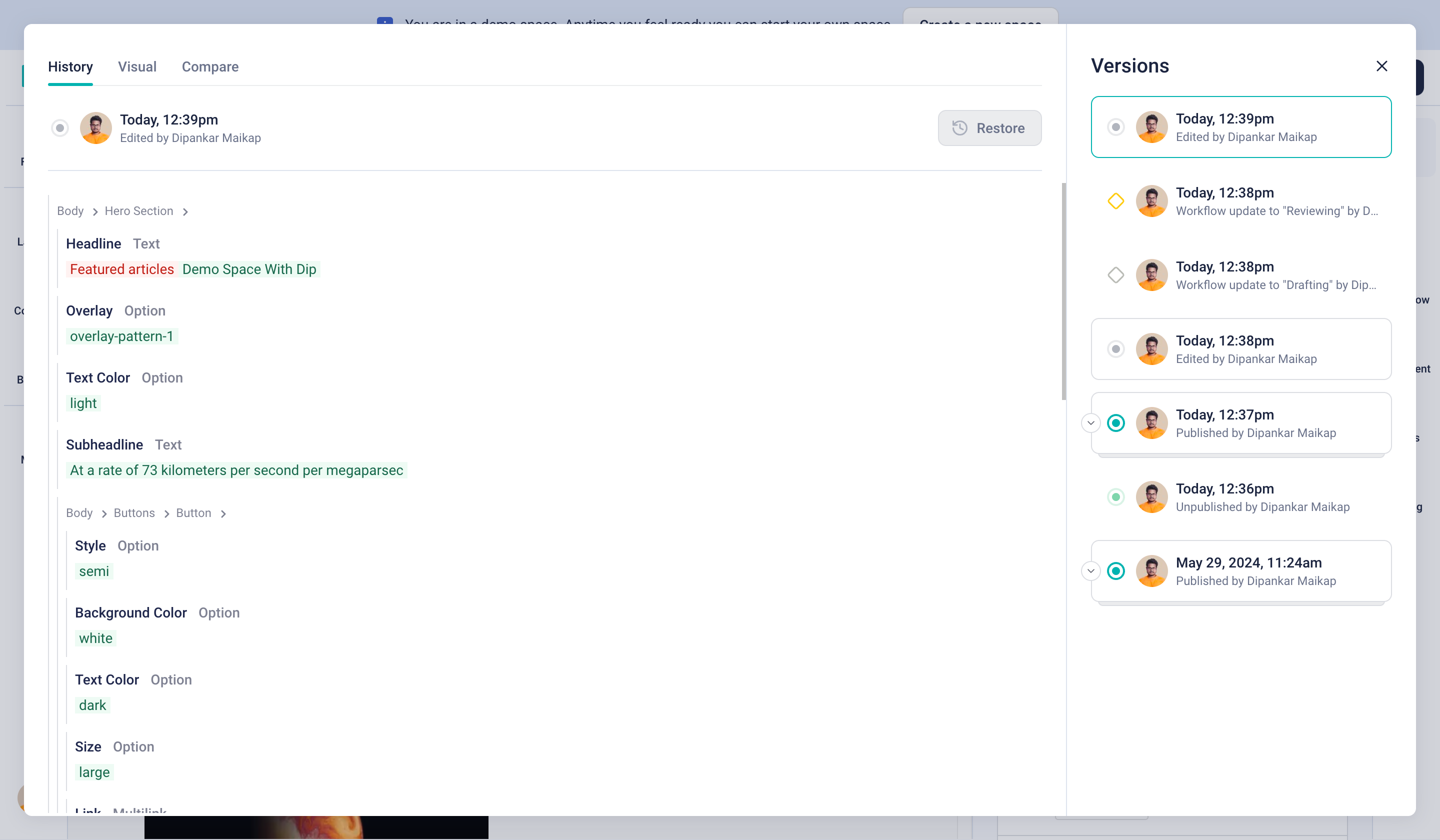
History versions
To revert to an earlier version, select the desired version on the right and choose Restore. This replaces the current story with the selected version.
Versioning also captures workflow stage changes, logging each transition for transparency and process management.
Compare versions
Section titled “Compare versions”In Storyblok, Comparison View allows users to compare saved drafts with published versions.
To compare different versions of a story, open the Compare tab. Select versions to compare from the drop-down menus. View the content differences with the highlighted modifications.
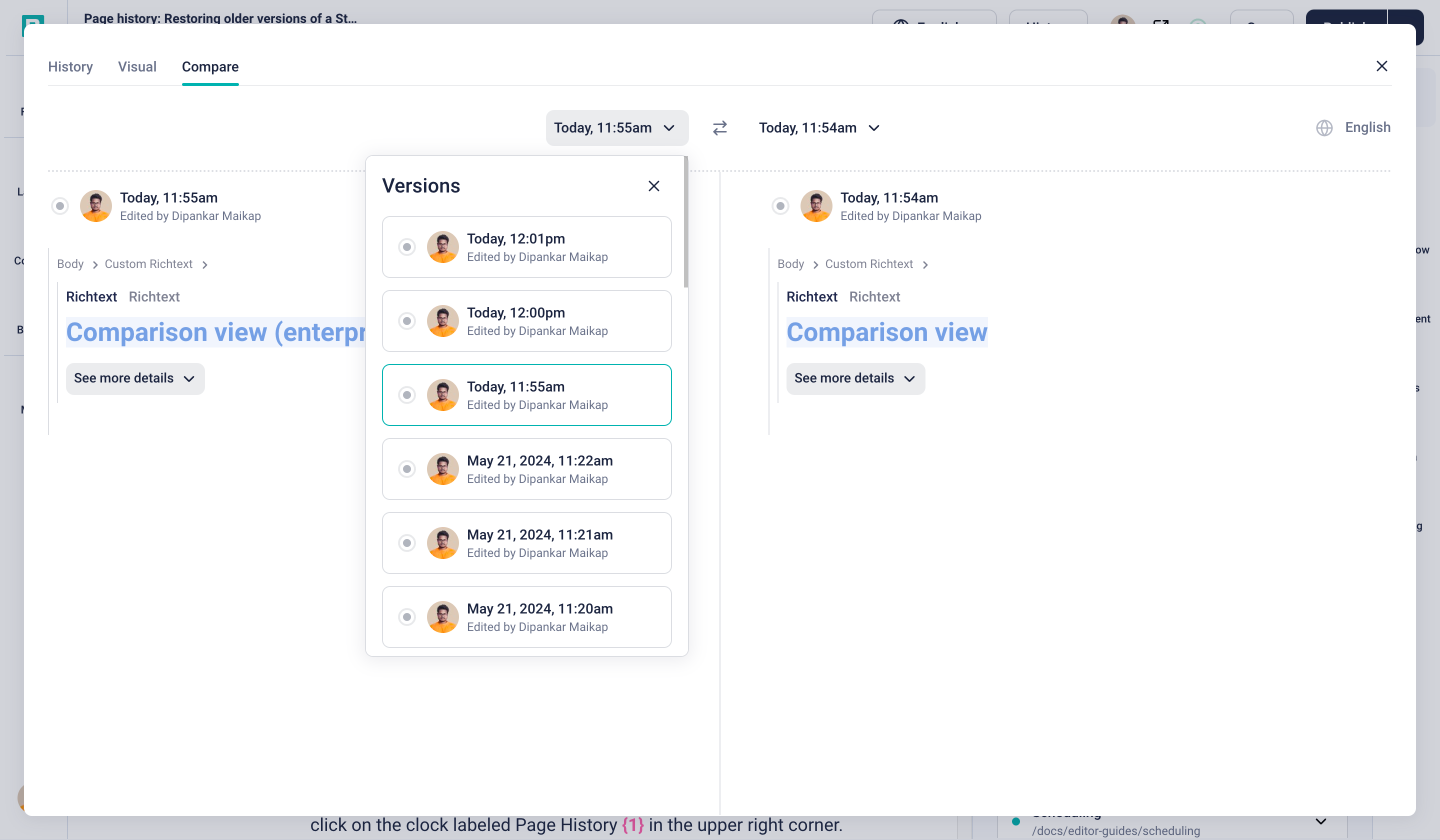
Compare history
Use the breadcrumbs to navigate through the various changes within the compared versions.
Visual history
Section titled “Visual history”The Visual tab displays a full rendering of any previous version of the content so you can revert to it.
The visual history is effectively a time machine for your content.
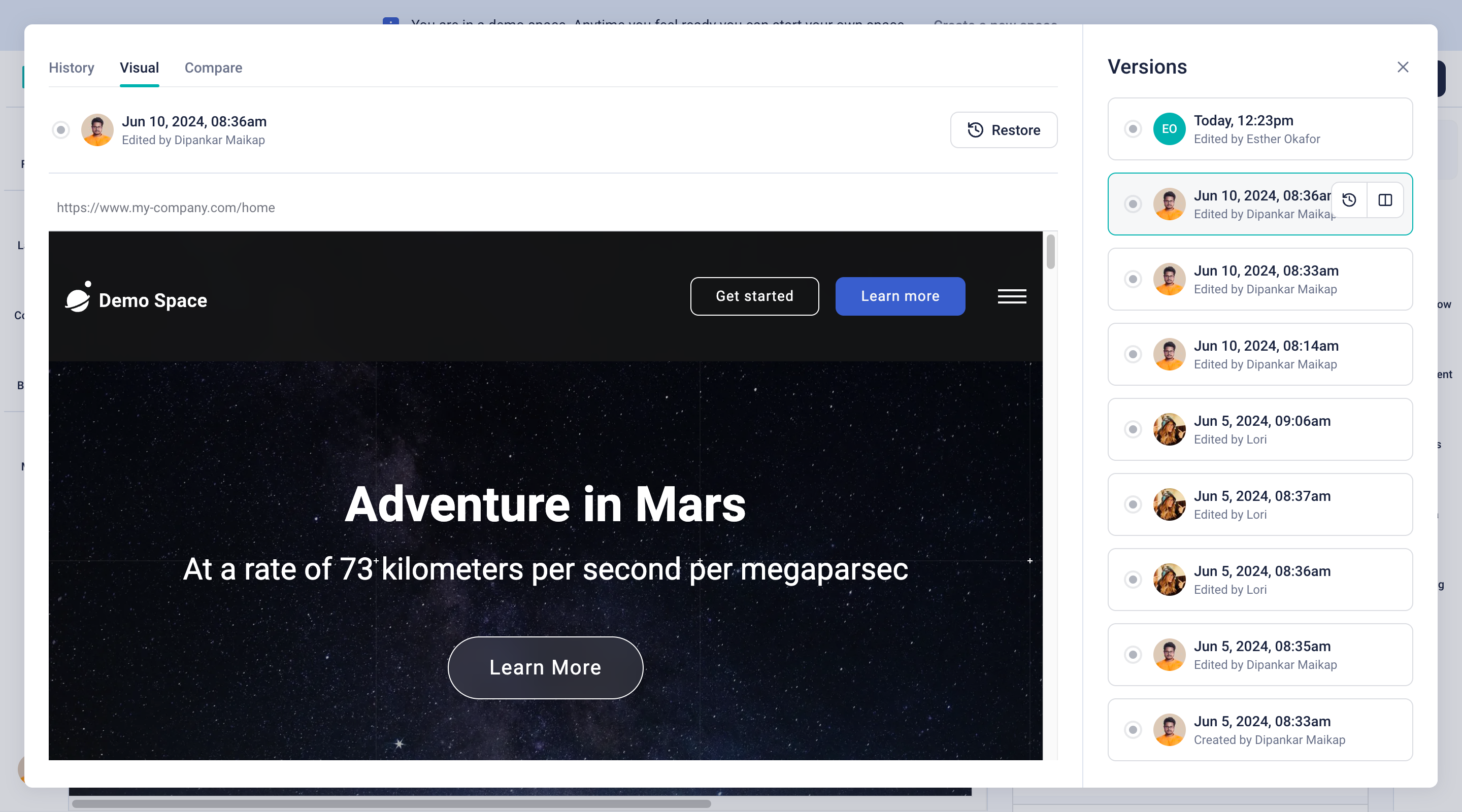
Visual history
Developers can use one of Storyblok’s SDKs to render the content with the preview bridge.
Was this page helpful?
This site uses reCAPTCHA and Google's Privacy Policy (opens in a new window).Terms of Service (opens in a new window) apply.
Get in touch with the Storyblok community